Chrome extension web clipper that saves straight to your PC
Chrome extension for TaskNote that lets you clip web pages directly to your Windows PC, keeping your research 100% private and offline. Unlike traditional clippers that lock your data in the cloud, this tool saves highlights and source links straight to your hard drive with a single click. Work uninterrupted, open no extra tabs, and rest easy knowing your thoughts never touch a third-party server.
Add to Chrome, freeFree. Works offline. No account required.
 Chrome
 Edge
Edge Brave
Brave Opera
Opera Vivaldi
 Arc
ArcDesktop Clipper: for the TaskNote Windows app
Everything you clip lands in the TaskNote app installed on your PC. No account, no server, works offline.
How to set it up, in three steps
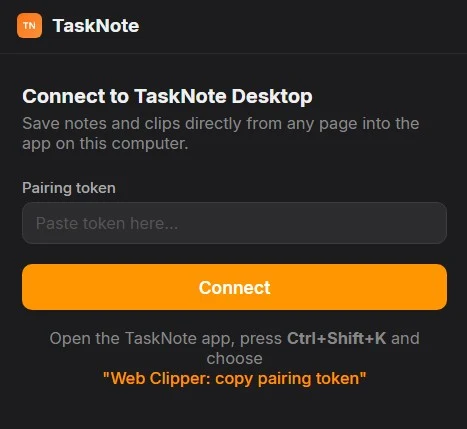
1Install the extension from the Chrome Web Store and open it. The first time, it asks for a pairing token.
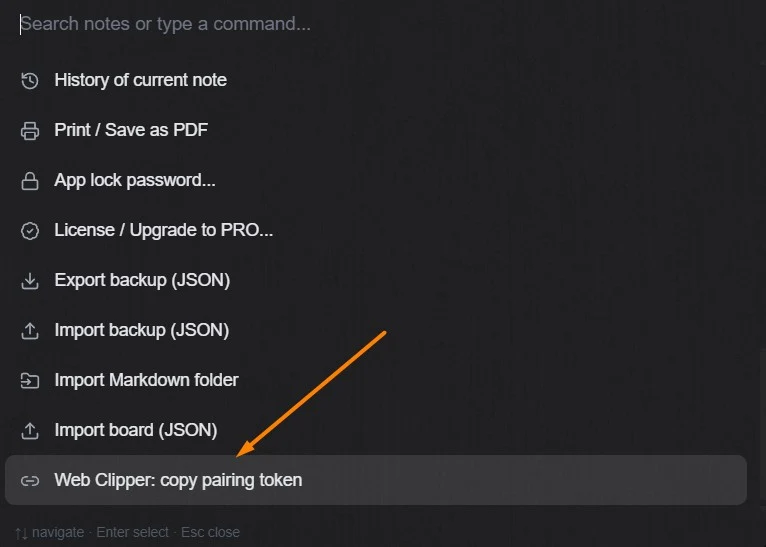
2In the TaskNote Windows app type "/" in the search box, or press Ctrl+Shift+K, and choose "Web Clipper: copy pairing token".
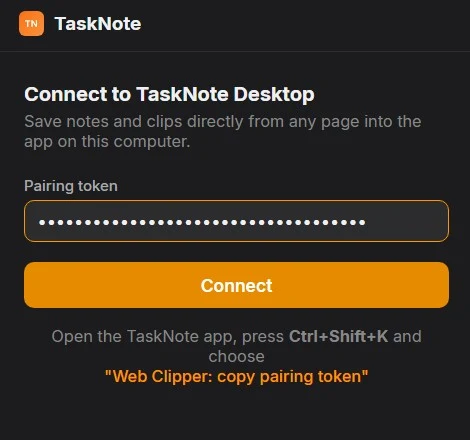
3Paste the token into the extension and press Connect. Once; from then on the two are paired.
How to use it
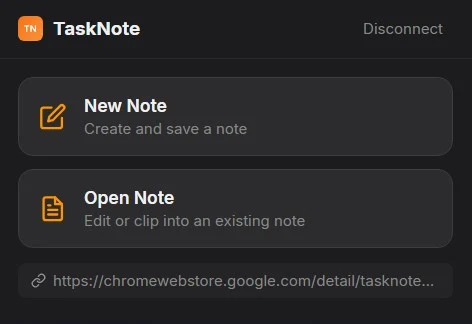
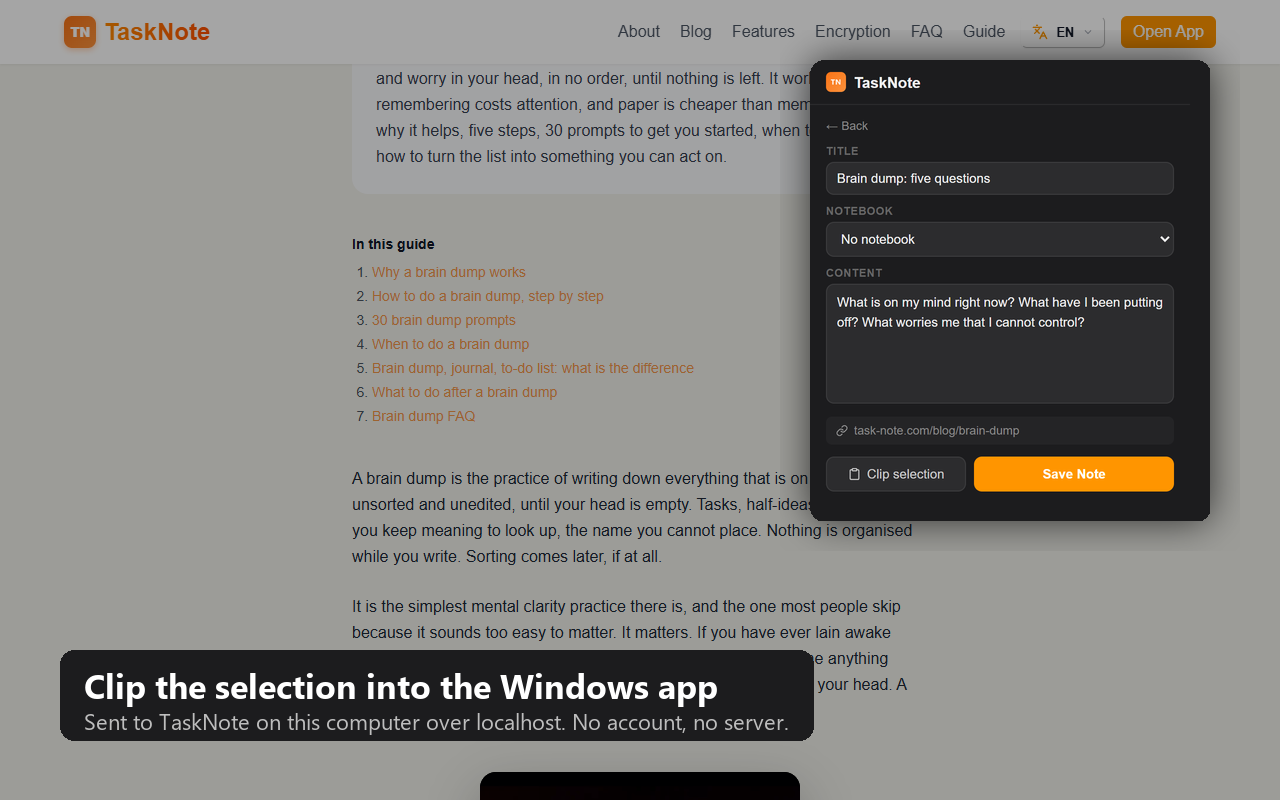
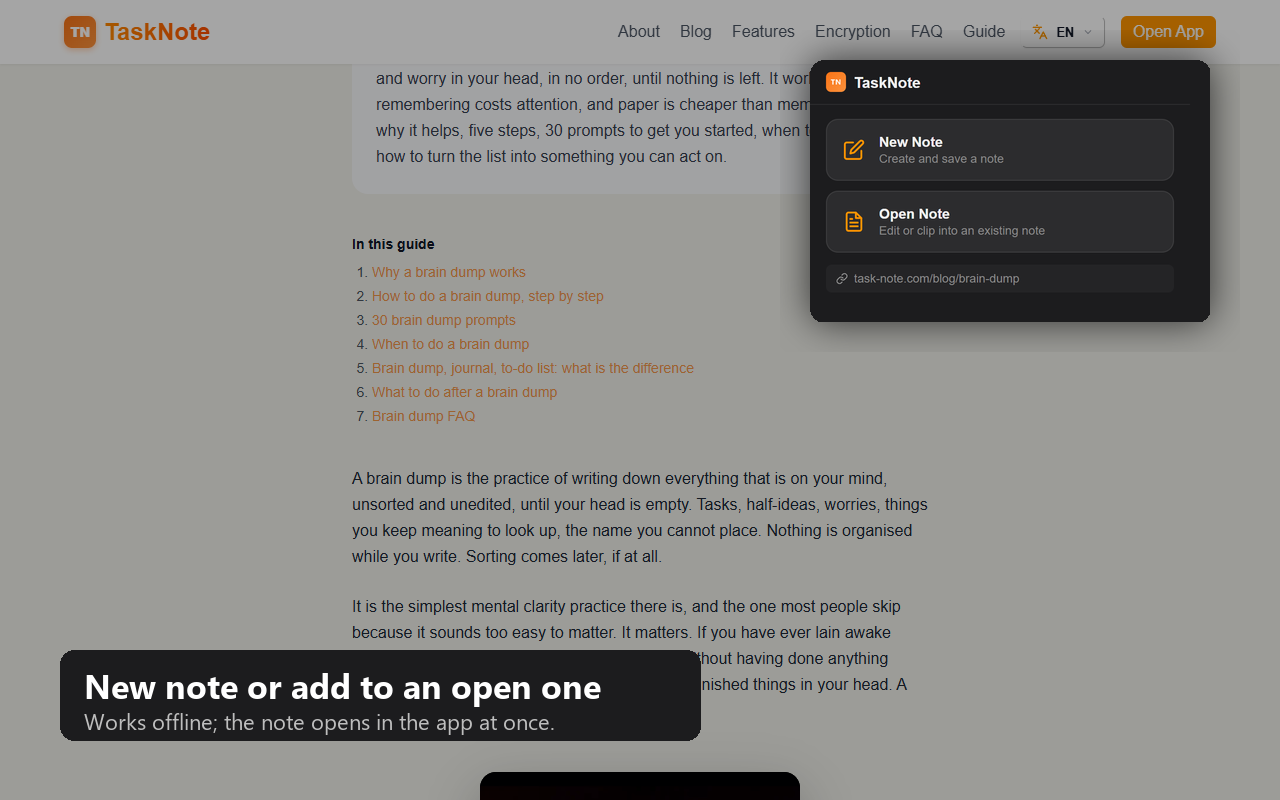
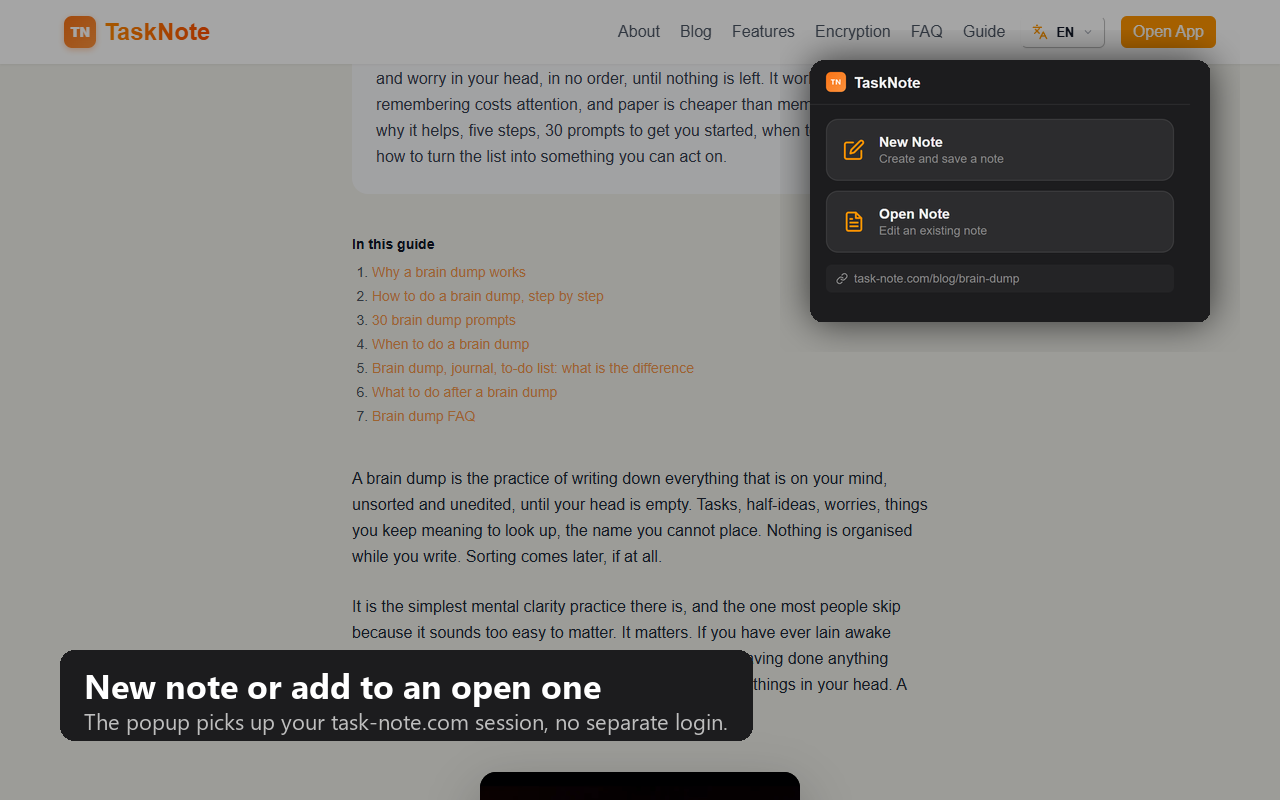
1The popup now offers two things: a new note, or clipping into a note that already exists.
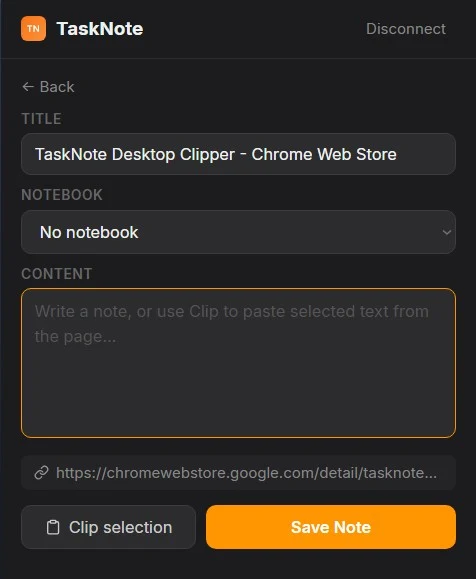
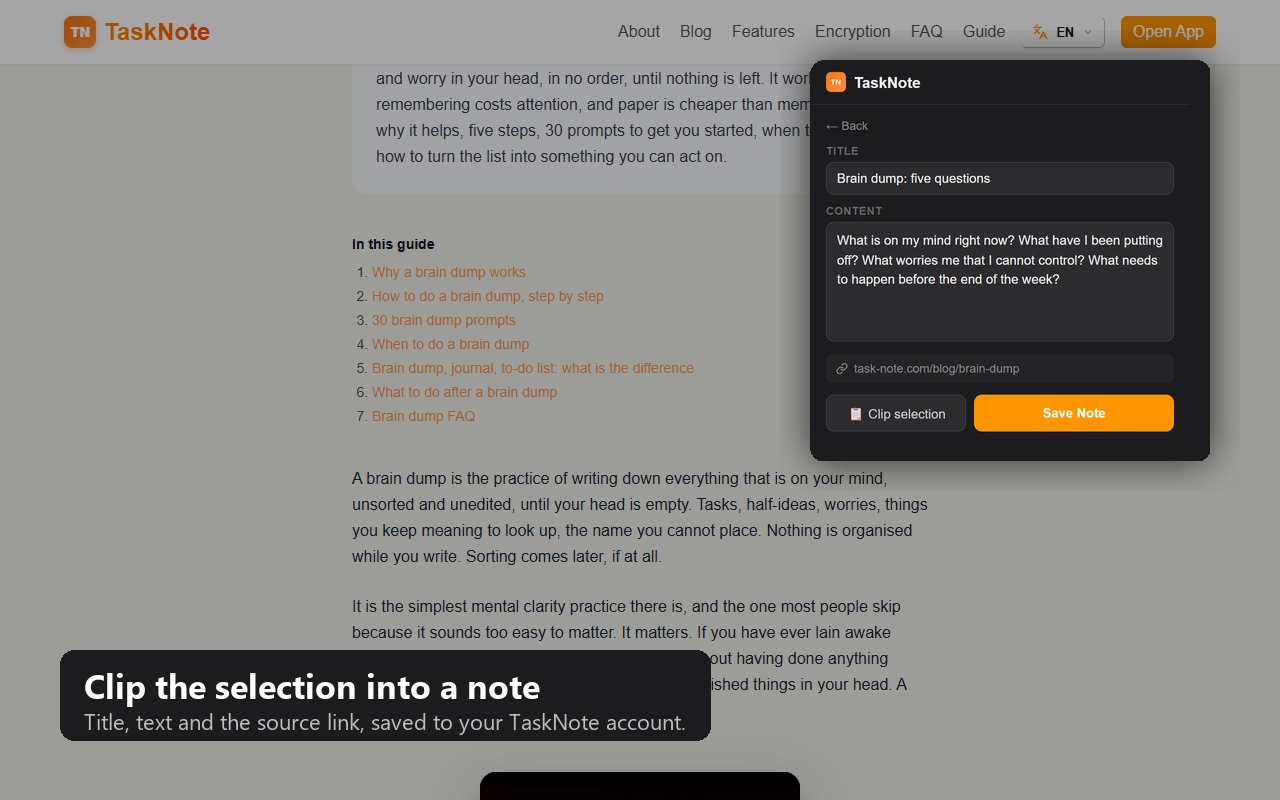
2New Note: the page title is filled in, pick a notebook, write, or press "Clip selection" to paste what you selected on the page. Save Note.
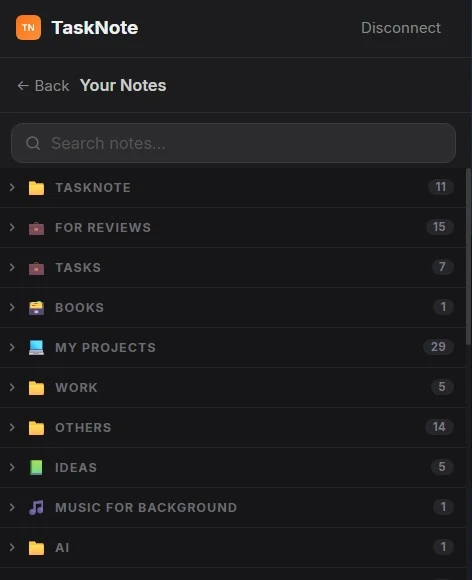
3Open Note: your notebooks and notes from the app, with search. The clip goes into the note you pick.
Why TaskNote Clipper
Build context, don't just collect
Highlight, click the inline button, and the quote joins your active note. One clean research log instead of twenty scraps.
Nothing leaks, nothing waits on you
Clips live on your PC. If the app is closed, the extension holds them and delivers when you open it.
Find the right notebook in seconds
Nested notebooks stay collapsed until you need them, so hundreds of notes never turn into a wall.
Web Clipper: for the TaskNote web app
The same clipper for people who use TaskNote in the browser: clips go to your account and sync everywhere you sign in.
What the extension does
Clip the page you are on
One click on the toolbar icon saves the title, the link and whatever text you had selected. No new tab opens, no dialog asks you to categorise anything first. If you selected nothing, you get the page and its address.
Build one note from many pages
Compile a research paper or a long article into a single structured note without jumping between tabs. Pick the note once; from then on you read, highlight, click the small button next to the selection, and the note grows in the background, each passage with its source link.
Save a link for later
Right where you are, without opening the app, without hunting for the right notebook and without losing the tab you were on.
Drop it into the right notebook
The picker lists your notebooks as a tree rather than one long column, so a clip lands where it belongs. Notebooks start collapsed, so you reach the one you want in a couple of clicks even with hundreds of notes.
Clip now, the app catches up
TaskNote closed? Clip anyway. The extension keeps every clip on its side and hands them all over the moment you open the app. Nothing to redo, nothing lost.
How it differs from other web clippers
Web clipping is a crowded category. The difference here is not the clipping, it is the destination.
| What matters | TaskNote Clipper | Evernote, Notion | Obsidian Clipper |
|---|---|---|---|
| Where the clip goes | Your own PC, nothing leaves it | The company's cloud | A Markdown file in your vault |
| What happens next | It can become a task on the board | It sits in storage | A folder of files, templates to set up |
| Without internet | Fully works | Cannot save | Works |
Against the Evernote Web Clipper
Evernote's clipper is excellent at what it does, and everything it saves goes to Evernote's servers. That is the deal: you get access from any device, and a company holds your reading. With the TaskNote Windows app, the same clip goes to a file on your own disk, and no server is involved at any point.
Against the Notion Web Clipper
Notion's clipper needs three things before the first clip: an account, an internet connection and a workspace with a database set up. Then it stops working the moment you are offline. TaskNote's Windows clipper needs none of that: open the app, paste the code once, clip.
Against browser bookmarks
A bookmark is a promise the page will still be there. It rarely is: the text changes, the URL moves, the site disappears, and the bookmark points at nothing. A clip keeps the passage itself, forever, next to your own note about why it mattered.
Against the Obsidian Web Clipper
Obsidian's clipper hands you a Markdown file and a vault to maintain: plugins to install, templates to configure, folders to keep straight. Good if that is your hobby. TaskNote skips all of it: the clip lands in a note that is one click from becoming a task on the board.
Against the Joplin Web Clipper
Joplin's clipper is open source and private, like ours, and it sends clips to the Joplin desktop app over a local port, the same way the TaskNote Windows clipper does. The difference is what is on the other end: Joplin is a notes app; TaskNote is notes with a kanban board and reminders, so a clipped page can turn into something to do.
Installing the Chrome extension
With the Windows appThe version for the web app is on its way to the store.
Two versions, two destinations
Which one you want depends on where your notes live. The extension is the same idea either way; what changes is where a clip ends up.
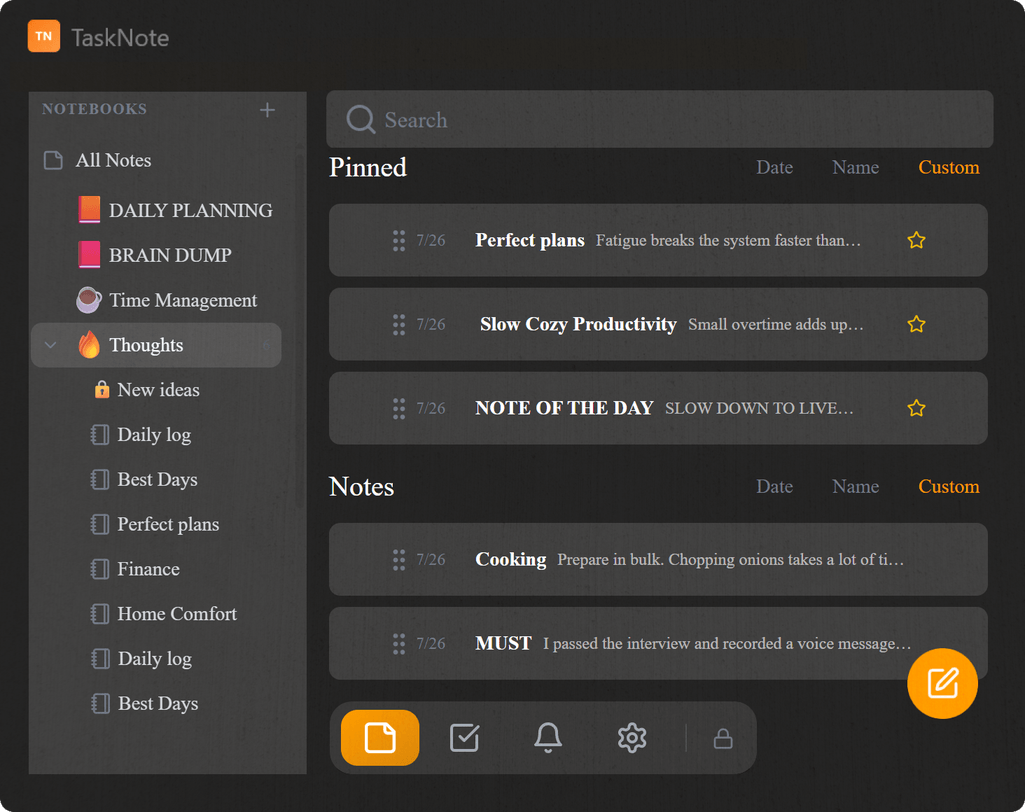
With the Windows app
- Clips go straight into the app on your computer.
- Nothing is sent to a server, and it works with the network switched off.
- You pair it once with a code from the app. No account.
With the web app
- Clips sync to your account and are end-to-end encrypted before they leave the browser.
- Reachable from any device you sign in on.
- Needs an account.
Questions about the extension
Does the extension read the pages I visit?
No. It only sees a page when you ask it to: when you click the toolbar button, or when you have selected text and press the small add button beside it. Nothing is read, stored or sent in the background, and there is no analytics of any kind in the extension.
Where do my clips go?
With the Windows app running, into the app's own storage on your computer, over a connection to 127.0.0.1 that never leaves the machine. With the web app, to your encrypted account. There is no third destination.
Do I need an account?
Not for the Windows version. It pairs with the app on your machine using a code you copy once from Settings, and works without an account at all.
Will it work if I am offline?
The Windows version, yes. It talks only to the app on the same computer, so the internet is not part of the path at any point.
Does it work in Edge, Brave or Opera?
It is built on the Chrome extension format, so browsers based on Chromium load it the same way. The install steps are the same, only the address of the extensions page differs.
What happens to a clip if the app is closed?
It is held and sent the next time you open TaskNote. You do not have to remember to retry, and nothing is lost by clipping while the app is shut.
Is it in the Chrome Web Store?
The version for the Windows app is: one click on Add to Chrome above. The version for the web app is on its way to the store; until it lands, it installs by hand in developer mode.
Related
- TaskNote for Windows
- Using TaskNote in Chrome
- All the ways to run TaskNote
- Notes and a kanban board together
First get the app
The extension needs somewhere to put things. Start with TaskNote for Windows.
Download for Windows