Kanban Board for Notes | Turn a Line You Wrote into a Card
Notes hold the thinking, boards hold the doing, and most apps make you pick one. Here is the move that joins them, and when not to use it.
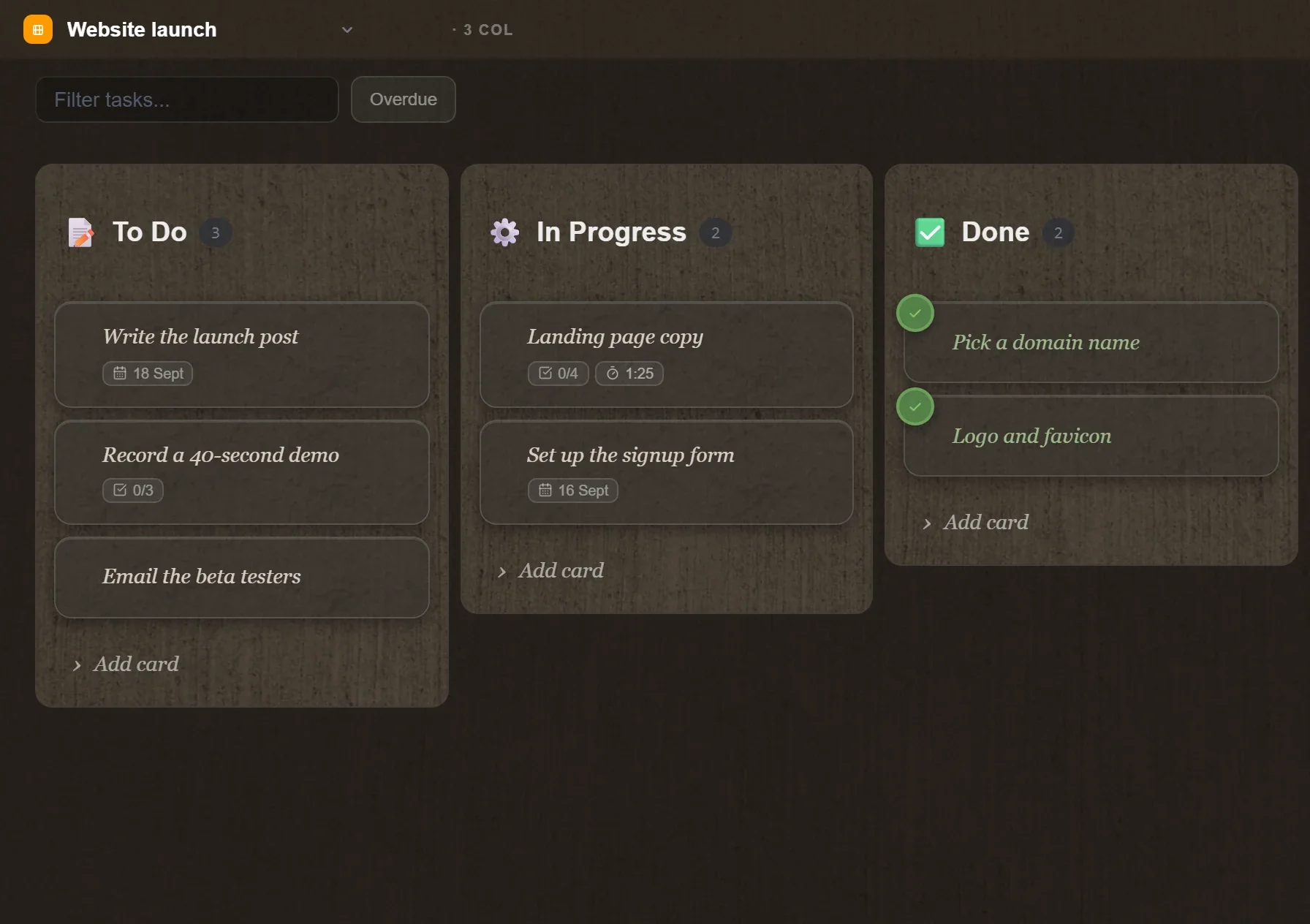
Two searches have been climbing all year: "kanban board for notes" and "notes app with tasks". They are the same complaint in different words. A note is where a thought starts. A board is where it gets finished. Most tools make you keep them in different places, and the copying between them is done by hand, badly, until it stops being done at all.
The fix is one move: the line you already wrote becomes the card. This piece is about that move, what to put on a board and what to leave on the page, and the three column setups that survive contact with a real week.
Why the copying is the problem
Watch what actually happens without it. You write a page of meeting notes with four commitments buried in the prose. Later, you open the task app and type them again, shorter. Something is lost in the retyping: who asked, what was agreed, why the deadline is Friday. A week on you are looking at "send Maria the figures" with no idea which figures.
So the task lives in two places, neither complete. The page has the context and no status. The board has the status and no context. Keeping them in step is work nobody wants to do, which is why the board goes stale first and then gets abandoned.
Joining them removes the retyping and the loss. The card is the line; the note is behind it.
The move itself
In TaskNote it is three seconds. TaskNote is ours, so read this as a description rather than a review.
Select the line in your note, and the menu that appears over the selection has Create task. The line becomes a card in the first column of the board, and the card keeps a link back to the note it came from. Open the card later and the page that explains it is one click away.
Nothing is moved out of the note. The sentence stays where you wrote it, in the paragraph that gives it meaning; the card is a pointer to it with a status attached.
What belongs on the board, and what does not
The board fills with rubbish the moment everything goes on it. A line worth a card usually has all three of these.
| Keep it on the page | Make it a card | |
|---|---|---|
| How long | Done in the next ten minutes | Outlives today |
| Who | Only you, only now | Someone else waits on it, or you will pick it up later |
| What it needs | Nothing but the note in front of you | A date, a status, or a handover |
Everything else is a checkbox in the day's page, which is what the daily notes method is for. A board of forty cards is a list you have stopped reading.
Three column layouts that hold up
The default three columns fit most personal work: To do, Doing, Done. Two variations are worth knowing.
The waiting column. If a lot of your work sits with other people, add Waiting on between doing and done. It keeps the "I have asked, they have not answered" pile out of your active work while staying visible enough to chase.
The week and the day. Two columns before doing: This week and Today. The ritual is the move: every morning, three cards go from the week to the day, and nothing else is allowed in. It is the three lines of the daily note, made visible.
Whatever the layout, set a limit on the doing column. One card, or two if your work genuinely alternates. The limit is the whole point: to start something new you have to finish or park what you have, and that decision is the thing focus is made of.
The other direction: a card that needs a page
It also runs backwards. A card that has grown a discussion, a list of options, or three paragraphs of reasoning does not belong in a card description. Give it a note and link the card to it. The board stays scannable, the thinking has room, and the two stay connected.
The rule of thumb: if you cannot read the card at a glance from across the board, what it needs is a page.
Friday, and why the board survives
A board rots when nothing ever leaves it. Fifteen minutes at the end of the week fixes that.
- Everything in done: read it, then clear it. The week's pages remain as the record.
- Anything in doing that has not moved for a week: it is not doing. Back to the list, or delete it and be honest.
- Anything in waiting for more than a week: chase it or drop it.
- Anything you have moved past twice without touching: delete it. A card you keep skipping is a decision you have already made.
Most of what you write down is disposable, and a board that admits this stays usable for years.
How it fits the rest of the day
The pieces only work together. The day's page catches everything as it arrives. The three lines at the top say what would make the day count. Lines that turn out to be work become cards, with the page behind them. Anything with a deadline gets a reminder, because a board does not shout and a deadline sometimes needs to.
On the desktop the whole set lives in a file on your machine, so it opens with the network off: the Windows app needs no account and no connection, which is what makes it usable in the hour when you have deliberately gone offline.
The short version
Do not keep two lists. Write in the note, and when a line turns out to be work, make it a card without retyping it. Keep the board small, limit what you allow yourself to be doing at once, and clear it on Friday. The page keeps the reasons; the board keeps the state; neither has to be maintained by hand.
Questions
- What is a kanban board for notes?
- A board whose cards come from lines you have already written, rather than a separate to-do list you fill in again by hand. The card keeps a link back to the note, so opening it brings back the paragraph the task came from.
- Should every task live on the board?
- No. A thing you will do in the next ten minutes belongs on the page as a checkbox. The board is for work that outlives today: something you will pick up tomorrow, or hand over, or wait on.
- How many columns should a personal board have?
- Three is enough for most people: waiting, doing, done. Add a fourth only when you can name what it is for. Columns that describe a stage nobody actually passes through turn into a place cards go to be forgotten.
- Why limit the doing column to one card?
- Because it forces the decision that makes focus possible: to start something new you must finish or explicitly park what you have. That single number does more than any app feature.
- Does this work without an account?
- In the Windows app, yes: notes and boards live in a file on your own disk with no sign-in. The web app keeps the same idea behind an account, because it syncs and encrypts notes in the browser.
kanbantasksworkflow