Notes app formatting without the ceiling
Most built-in notes apps give you bold, a bullet list and a wall you hit soon after. This one gives you highlight, colour, headings, tables, checklists and two columns inside one note. You can try all of it below before installing anything.
Try it here
Weekly review
- Shipped the pricing page
- Fixed the export bug
Anything you can do here, you can do in the app.
This is a demonstration, not a saved note. Nothing here is stored or sent anywhere.
The block above is showing the kraft texture at the app's default settings.
Two columns inside a note
Put the plan on the left and the notes from the call on the right, in the same note, without a table pretending to be a layout. This is the one people search for most often and find missing: the stock notes app on a phone cannot do it at all.
A link from one note to another
Point a note at another note and jump straight there. It is the habit that makes a pile of notes into something you can navigate, and it is the main reason people go looking at Obsidian in the first place.
Tables and checklists that stay put
A real table with rows you can edit, and checklists you tick off inside the note rather than in a separate to-do app. Both survive being reopened months later, which is more than can be said for a table pasted in as an image.
The full set
Everything the editor can do, in one list:
Bold, italic, underline. Text colour and highlight. Headings H1 to H3. Left, centre and right alignment. Font size and font family. Bullet lists, numbered lists, checklists. Quote and code. Links, links to other notes, emoji. Columns and tables.
The whole toolbar
The bubble menu carries 33 tools in 8 groups and appears over whatever you select. Order and contents are yours to change; dividers fall on the group boundaries.
Colours, by name and by code
Five for the highlighter, nine for the text. The highlighter lays its colour down at 40 percent, so the words underneath stay readable in either theme, while text colour goes on at full strength. You can add your own to both palettes and they survive a restart. The text palette also colours the checklist ticks.
The tick is adjustable
It takes any colour from the palette above, comes as a square or a circle, and scales from 0.8x to 2.5x in steps of 0.1.
- Done
- Square
- Round
- 1.4x, blue
Fourteen fonts
A font applies to the fragment you selected, not to the whole note. Inter, Montserrat, Lora and JetBrains Mono ship with the app; the rest come from the fonts already on your system.
And a paper to write it on
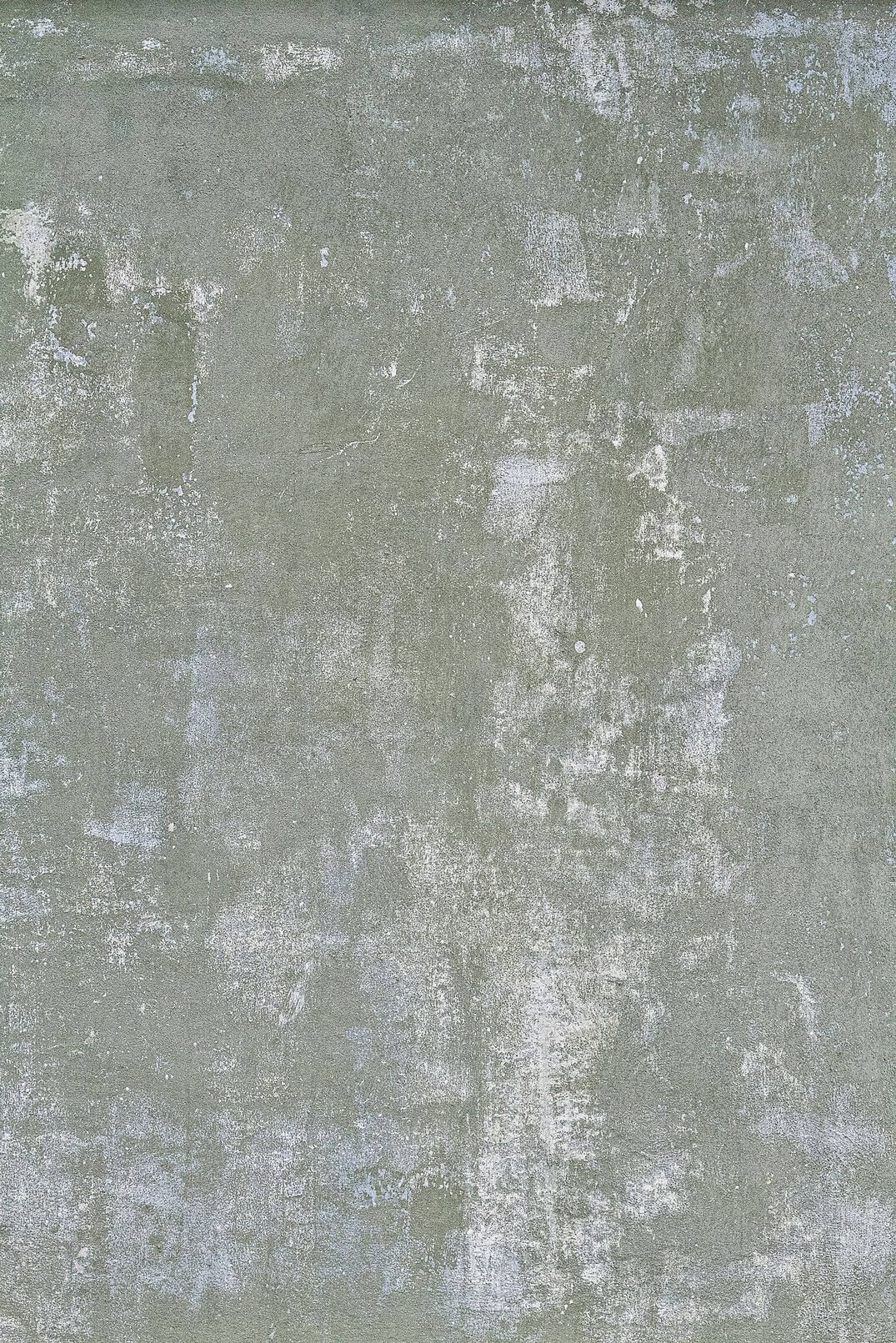
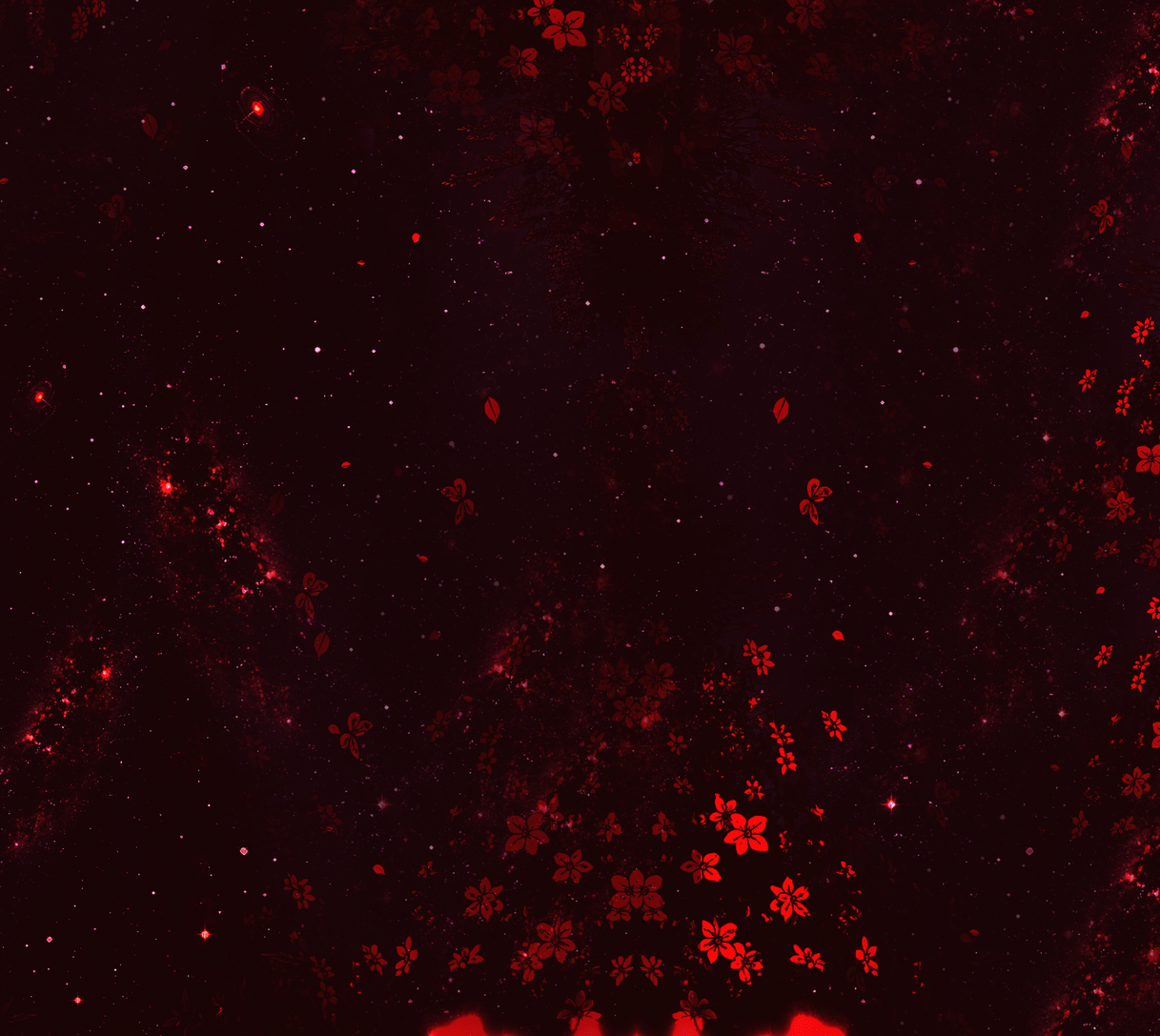
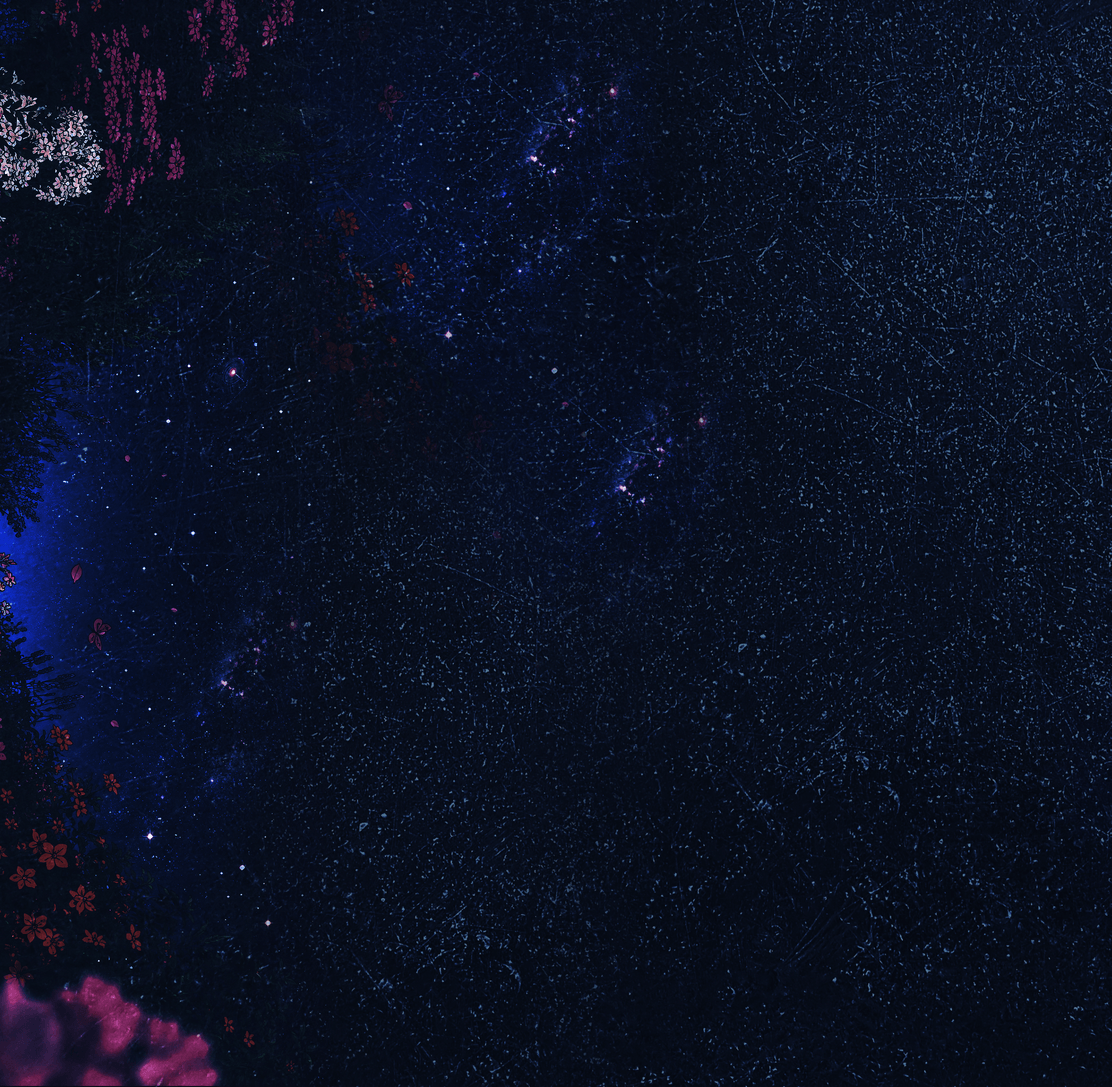
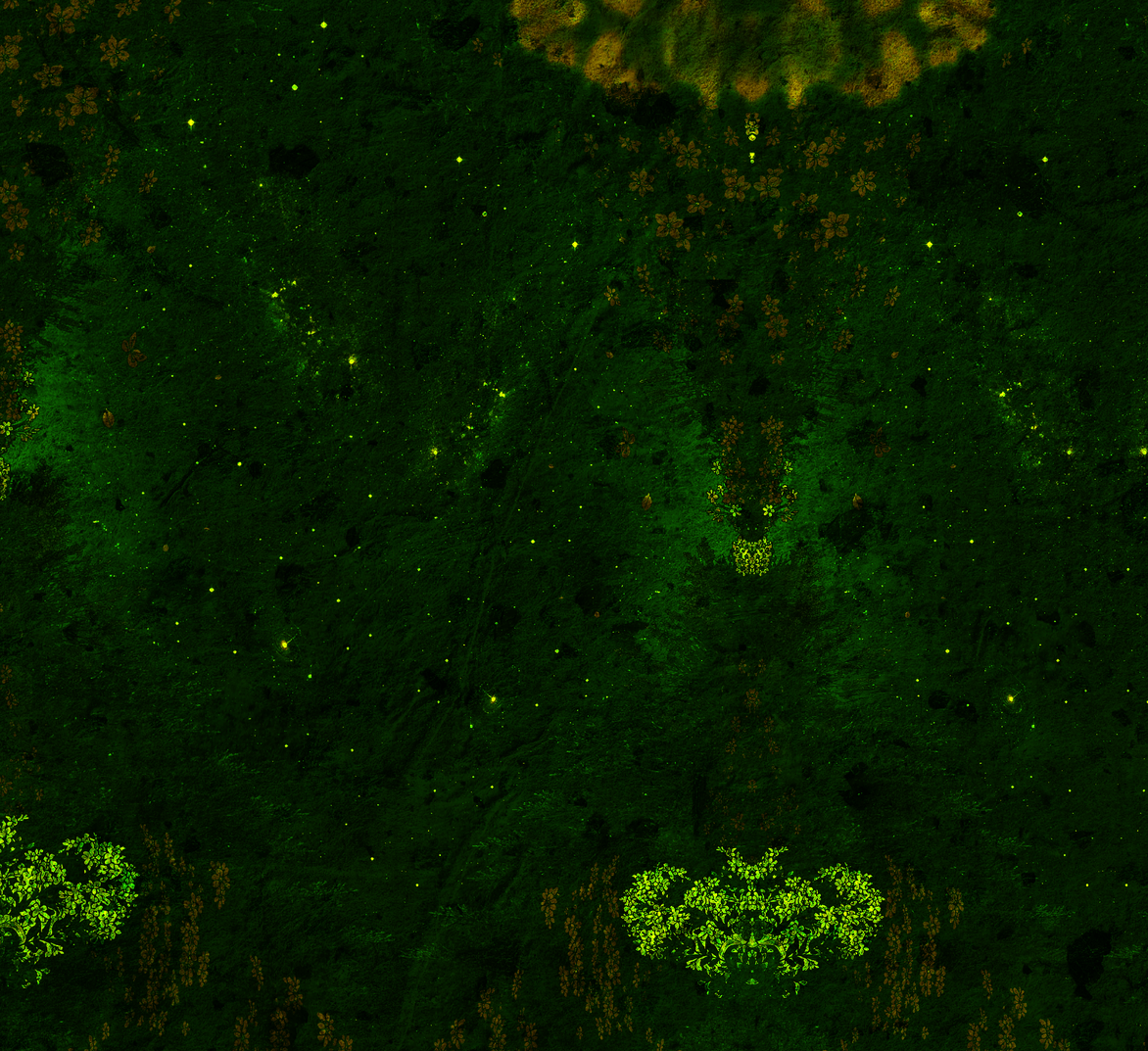
Ten textures for the background: kraft and linen in two variants each, moon, pressed petal, wall and three constellations. Opacity and blend mode are adjustable, so it can sit as a whisper or as real paper.






All of it is free
Formatting used to sit behind the paid plan. It does not any more, and neither do the themes and textures. The paid version lifts the limits on how many notes, tasks and boards you keep, and nothing else. A free user is not meant to feel handed a broken editor.
What happens when you export
Every note exports as a .md file that opens anywhere. Worth knowing up front: Markdown has no way to express text colour, highlight, font family or columns, so TaskNote keeps those as HTML inside the file. They come back perfectly in TaskNote, and in a plain Markdown editor they will show up as tags. Bold, italic, headings, lists and quotes are plain Markdown and travel cleanly.
Questions
Can I highlight text the way I do on paper?
Yes. Highlight and text colour are both in the toolbar, and you can try them in the block above. They survive closing and reopening the note.
Can a note have two columns?
Yes. Columns go inside a single note, so a plan and the notes about it can sit side by side without splitting them into two files.
Do tables work, or is it a pasted image?
Real tables. You insert one, type into the cells and edit rows later. Nothing is flattened into a picture.
Is formatting available on the free plan?
Yes, all of it, including themes and textures. The paid version only lifts the limits on how much you keep.
Will my formatting survive an export?
Bold, italic, headings, lists and quotes come out as ordinary Markdown. Colour, highlight, fonts and columns are kept as HTML inside the .md file, because Markdown has no syntax for them.
Do I need an account?
Not for the Windows app. It keeps everything in a local file on your own computer and never asks you to sign up.
Related
- Notes and a kanban board together
- Notes that remind you
- Compared with Apple Notes
- Everything TaskNote does
Write it the way you think
Notes, a board and reminders in one app. Free to start, no card.
Download for Windows